As noted in the beginning of this guide, its purpose is not to teach you how to create WordPress websites, including coding themes. It would, however, be incomplete had I not cover templates and template parts at least to some extent. This section provides a glimpse into what writing a classic theme looks like. Consult the Theme Basics documentation for more pragmatic information (or just read the source code of some high-quality themes).
The most important thing to revisit is that themes are based on templates. Which template is used is predicated on the template hierarchy. You can opt to create as many specific templates as you like (single.php, page.php, category.php, etc.) or as little as just the index.php file.
Templates are usually a combination of PHP, HTML, and template tags. Template tags, as already explained, are functions used to display dynamic data in templates. This data doesn’t have to come from the database (like it does with the_title() or the_content()). Another form dynamic data can take is PHP files, called template parts.
Template parts are an extremely important part of writing templates. You wouldn’t want to copy-paste your header’s and footer’s HTML into every template you create, would you? That’s what template parts are for. There are a couple of template parts with specific built-in template tags to retrieve them:
- header.php included by get_header()
- footer.php included by get_footer()
- sidebar.php included by get_sidebar()
- searchform.php included by get_search_form()
To include custom template parts, you should use the generic get_template_part($slug, $name, $args) function. To include the file parts/content.php (where the parts folder is located in your theme’s directory), you would do:
get_template_part( 'parts/content' );This allows you to keep your code DRY if you had to use the content.php file in multiple templates. The $name argument lets you specify a suffix added to the slug after a hyphen. If you were to pass ‘page’ as $name, the searched for file would be parts/content-page.php. This is very powerful if you want to let your users control which template parts gets used, such as:
// some code setting the $layout variable, perhaps based on a setting from the Customizer (more on that later)

get_template_part( 'parts/content', $layout );This way you could dynamically include either a content-wide.php or a content-narrow.php template part. One powerful feature of the get_template_part() function is that if the $name is specified, but the file is not found, it falls back to the file with just the slug. This may be used, for example, for including a specialized template part based on the post type: get_template_part( ‘parts/content’, get_post_type() ). It will search for content-post.php, content-page.php, content-author.php, etc., and if it doesn’t find one, it defaults to content.php.
The $args argument allows you to pass additional data to the template part. It’s an array. If you were to pass an array with a key value pair ‘key’ => ‘value’, you could then do echo $args[‘key’] inside the template part to echo ‘value’. It’s worth noting the $args parameter is a relatively recent addition (WordPress 5.5). Before that, it was less straightforward to pass data to template parts. You might see older themes use tricks such as set_query_var() or global variables.
Page Templates
Custom templates (historically known as Page Templates) are template files meant to be chosen for a page by the user. This just means the user can select which page template the page should use and it’ll be used. Look back at the Template Hierarchy. A custom template is at the very top of the hierarchy of a page.
This functionality was originally supported only by pages. Support for all post types was added in WordPress 4.7. You may still be confused about why this even exists. Let me give you a real world example: A theme wants to let the user choose a layout with either 2 or 3 columns. The theme author creates two templates: “2 Columns Layout” and “3 Columns Layout”.
In reality, a Page Template is just any PHP file in the theme with a correct header comment. The file can be placed in a subfolder or not – WordPress will find it either way (a page-templates subfolder is a good practice). Here’s what a custom_template.php file may look like:
<?php
/*
* Template Name: 2 Columns Layout
* Template Post Type: page, post
*/That’s it. The Template Post Type attribute is only supported since WP 4.7, and in this case, it makes the template available for pages and default posts. You can specify any post type, including custom ones. Here’s what this looks like in the Classic Editor:
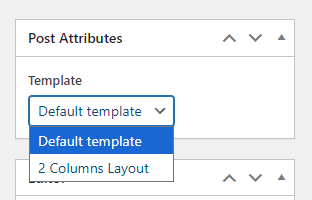
When the user selects the “2 Columns Layout” template and saves it, the custom_template.php file will be used for this page/post. Of course, it’ll not display anything as this file contains only the comments, but you get the point.