The template hierarchy specifies the order in which templates are checked for existence and loaded. Templates are just files (.php for a classic theme and .html for a block theme). They are kind of like the “View” in the Model View Controller pattern (even though WordPress does not utilize MVC). For every post type, WordPress looks for pre-defined file names in the active theme directory. It starts with the most specific one and loads the first one found. Different post types have different hierarchies. More information on the template hierarchy can be found in the WordPress Template Hierarchy Documentation. The infographic below shows the hierarchy visually.
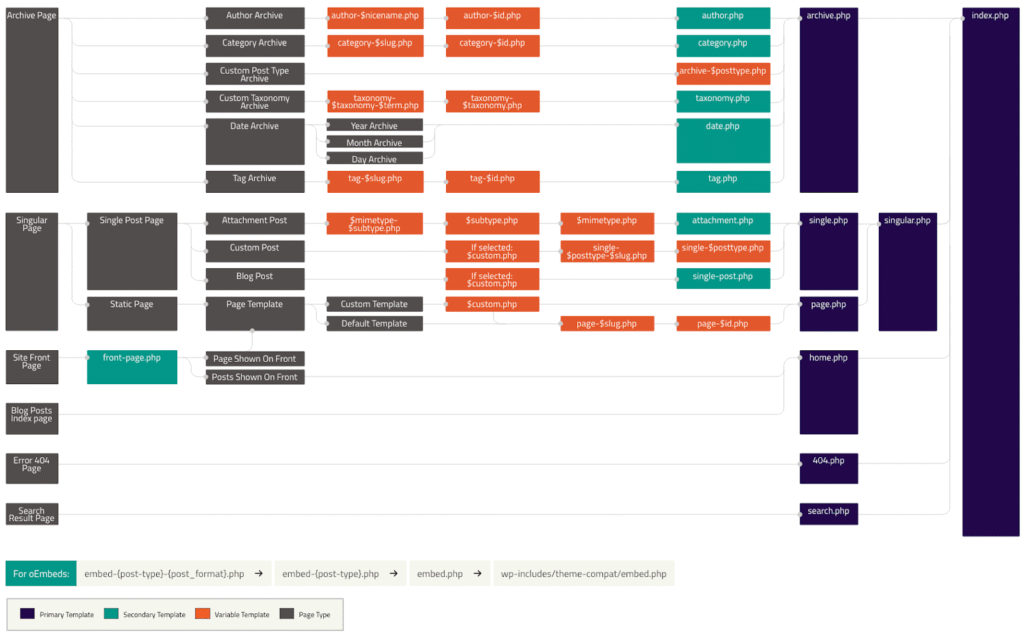
Source: WordPress Template Hierarchy Documentation
Front Page & Home Page
The topic of the front page and the home page in WordPress is very confusing. Let’s get the definitions straight first.
Front page – the page displayed for the root URL of your website (/), e.g., https://example.com/.
Home page – the page responsible for displaying all posts. Yes, this is stupid. Why isn’t it called “Posts archive” or “Posts index”? Well, because of WordPress’s history. Back in the day, the front page and the home page were the same thing – the only thing you could display on the front page was posts.
The front and home pages can be set up in Settings > Reading > “Your homepage displays”. There are 2 options:
- Your latest posts (default)
- A static page
The default behavior means the home page is the front page – the posts index is displayed for the root URL.
The static page option gets weird. It lets you choose a page (a post with post_type = page) for the front and home pages:
- Homepage (front page)
- Posts page (home page)
See? The names are normal here. The homepage is our front page, and the posts page is our home page. Don’t get fooled though, this is just to make the experience in the admin panel better. All the functions in WordPress still follow the old pattern, with is_home() instead of is_posts_page() (which doesn’t exist).
Template Hierarchy With ‘Your latest posts’ Option Checked
In this scenario, the front page is also the home page. That means when the user visits your base URL (https://example.com/), $wp_query will hold, by default, the 10 most recent blog posts. The template hierarchy is as follows:
- front-page.php
- home.php
- index.php
Template Hierarchy With ‘A static page’ Option Checked
This gets more complicated and confusing again. When using this option, WordPress treats these 2 with completely separate hierarchies.
The ‘Homepage’ option lets you select which page should be displayed when a user visits the root URL. The template hierarchy is as follows:
- front-page.php
- Custom page template (if assigned in the chosen page’s editor)
- page-$slug.php
- page-$id.php
- page.php
- singular.php
- index.php
You don’t know it yet, but the hierarchy right after front-page.php is the hierarchy of a page. Notice that the front-page.php file has priority over the template of the chosen page. In that case, $wp_query will contain the contents of that page, but front-page.php will be used as the template.
The ‘Posts page’ option lets you select which page should display blog posts (i.e., populate $wp_query with, by default, 10 recent posts). The template hierarchy is as follows:
- home.php
- index.php
Noticed something surprising? The template of the chosen page is not here! As a matter of fact, the only role of the page you choose is to define the URL (and metadata) for the blog page. The content you put in the editor of this page will never be displayed, as $wp_query is already occupied with posts.
Post Of Any Type Except Attachment (blog post, custom post type, etc.)
The template hierarchy of a single post:
- Custom page template (if selected)
- single-$post_type-$slug.php
- single-$post_type.php
- single.php
- singular.php
- index.php
Attachment
An attachment (e.g., an image) gets a permalink in WordPress, just like any other post would. This permalink is not the direct link to the file on the server, i.e., it doesn’t end with .jpg, .png, .pdf, etc. It’s literally a page on your website just for displaying your attachment. It’s a “custom” URL, and as such, goes through the WordPress request lifecycle.
This feature is not widely used anymore and sometimes even considered undesirable because these pages usually have thin content (which is a negative SEO factor). I’ve also tried playing with it while writing this and have been hit with some very weird behavior, like WordPress redirecting me to the file URL even though the attachment template existed.
Anyway, here’s the (theoretical) template hierarchy for the attachment post type if you ever need it:
- $mime-$subtype.php
- $subtype.php
- $mime.php
- attachment.php
- single-attachment.php
- single.php
- singular.php
- index.php
Page
A single static page template hierarchy:
- Custom page template (if selected)
- page-$slug.php
- page-$id.php
- page.php
- singular.php
- index.php
Category Archive
The template hierarchy for the page displaying posts of a given category:
- category-$slug.php
- category-$id.php
- category.php
- archive.php
- index.php
Tag Archive
Template hierarchy for the page displaying posts with a given tag:
- tag-$slug.php
- tag-$id.php
- tag.php
- archive.php
- index.php
Custom Post Type Archive
Template hierarchy:
- archive-$post_type.php
- archive.php
- index.php
Custom Taxonomy Archive
This applies to any taxonomy that is not a built-in category or tag. Template hierarchy:
- taxonomy-$taxonomy-$term.php
- taxonomy-$taxonomy.php
- taxonomy.php
- archive.php
- index.php
Author Archive
This archive displays posts from the given author. Template hierarchy:
- author-$nicename.php
- author-$id.php
- author.php
- archive.php
- index.php
Date Archive
This archive displays posts from the given date (e.g., example.com/2023/, example.com/2023/07/, example.com/2023/07/01/, etc.)
- date.php
- archive.php
- index.php
The 404 Page
Template hierarchy:
- 404.php
- index.php