Revisions are WordPress’s version control system for posts. With revisions, you can see a comparison between the markup of two different versions and choose to go back to an earlier version. Here’s what that looks like:
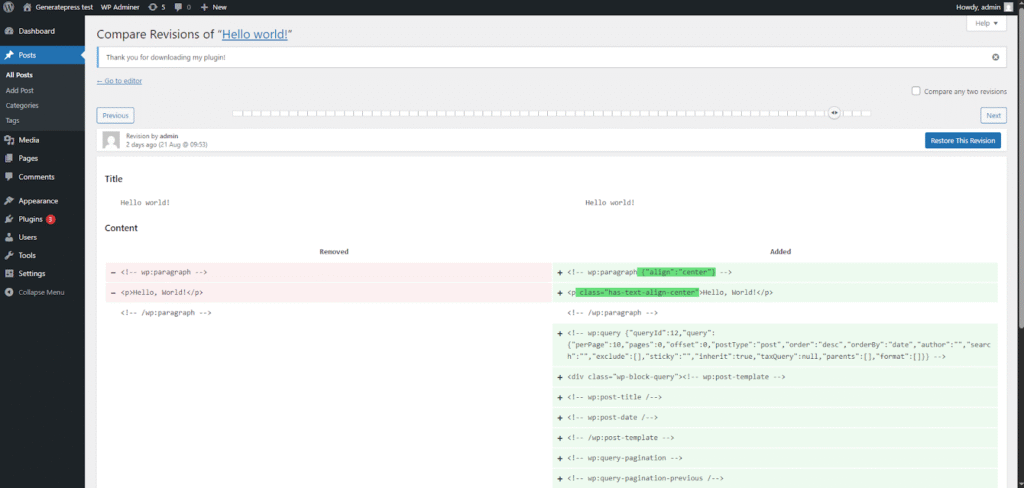
This post has 70 revisions, which is why there are so many rectangles on the slider at the top. Using this slider, you can preview any of those revisions. You can even compare any two arbitrary revisions by checking the “Compare any two revisions” option. The diffs are visually marked with red and green. You can restore the version on the right by clicking “Restore This Revision”.
It’s important to understand how revisions work. The wp_posts table contains 3 crucial columns: post_status, post_parent, and post_type.
Every revision has a post_type of ‘revision’. The post_status is equal to ‘publish’ on the published post, but the status of revisions is ‘inherit’. This means they inherit the status of their parent, which makes for a smooth transition to the last relevant column. The post_parent column stores the ID of the main post (the one with the status ‘publish’).
Let’s go through this system step by step to better understand it:
- You click “Add Post”.
- A new entry is added in the wp_posts table with post_status ‘draft’. Let’s assume the ID of this entry is 10.
- You click “Publish”.
- The post_status for the post with ID 10 gets changed to ‘publish’.
- A new entry is created with ID 11. Its content is exactly the same as the one with ID 10. Its post_type is ‘revision’, post_status ‘inherit’, and post_parent ’10’.
- You change the contents of your post and click “Update”.
- The entry with ID 10 gets updated.
- A new revision with ID 12 is created. Its content is equal to the new content of the post with ID 10.
Allow me to explain it once again, as this system might feel a little counter-intuitive. With revisions, there are always 2 posts in the database with the current content – the main published post (ID 10) and the latest revision. The revision is not created for the old version when you update. It’s created for the new version. This revision, containing the new version, becomes the old version when you update the post again.
The main post with the status ‘publish’ never changes its ID. It’s always the one created when you first added the post. Revisions are additive. Every new revision is a new post. This is also the case if you restore an old revision. When you do that, it’s as if you pasted the contents of the revision into the editor. The main post’s content changes, a new revision containing the same content is created, and the previous revision becomes the one with the content from before you clicked “Restore”.
Most built-in post types support revisions natively:
- Posts
- Pages
- Block patterns
- Block navigation menus (part of block themes)
- Block templates (part of block themes)
- Block template parts (part of block themes)
- Global styles (part of block themes)
Interestingly enough, custom post types do not support revisions by default. If you want your CPTs to have revisions, you have to specify it in the ‘supports’ parameter, like so:
‘supports’ => array( …, ‘revisions’, …),
Autosaves
Autosaves are an interesting part of this system. The WordPress Editor takes an autosave of your content every 60 seconds. This is by default, according to my testing, enabled only for posts and pages. An autosave is just a revision.
There is always at most one autosave in the database. The new autosave overrides the old one. The reason this feature exists is obviously to prevent loss of content in the unfortunate event of exiting/crashing without saving. If an autosave for the post exists, WordPress will let you know the next time you open the editor.

Custom Fields Revisions
WordPress 6.4 added native support for revisions of post metadata. When registering your meta (using either register_meta() or register_post_meta()), you can specify a ‘revisions_enabled’ argument. If you set it to true (it’s false by default), your metadata will be revisioned.
The revision works similarly to post revisions. A new entry is added in the wp_postmeta table. The meta_key is the same – thm_author_name for our custom field. The difference is the post_id, which points to the revision post instead of the main post.
The revision is added only with a post revision, i.e., if you change only the custom field without changing the post, no revision will be stored. That’s precisely because the revision of the metadata is connected with the revision of the post. It doesn’t exist on its own, just like a post revision can’t exist without a main post.
WordPress doesn’t check if the meta_value has changed or not. It stores a meta revision for every post revision. Note that if you have many custom fields for a post type, and all of them have revisions enabled, it can quickly swell up the size of your wp_postmeta table. Every post revision will add n new rows, where n is the number of custom fields using revisions.
There is no UI preview for the revisioned metadata, even in the revision panel (when choosing a revision to restore). You have to either check the database manually to see what values are stored for the given revision, or just restore it and check the fields.
Advanced Revisions Management
You can modify how the revisions system works. In your wp-config.php, you can define the ‘WP_POST_REVISIONS’ constant. Let’s look at a few options:
- define( ‘WP_POST_REVISIONS’, true ) – enables revisions (default).
- define( ‘WP_POST_REVISIONS’, false ) – disables revisions completely.
- define( ‘WP_POST_REVISIONS’, 10 ) – sets a maximum number of revisions to 10 (WordPress will delete the oldest ones beyond this number).
You can also change the autosave interval using the ‘AUTOSAVE_INTERVAL’ constant, like so: define( ‘AUTOSAVE_INTERVAL’, 120 ). This modifies it from the default 60 seconds to 120 seconds.