The Heartbeat API is a server polling API. Despite its scary name, the way it works is surprisingly simple. The entire idea is this: a small script is enqueued in the admin panel. This script sends an admin-ajax request every X seconds with a “heartbeat” action and some data. The server processes this request and returns a response that all scripts can see and act on. That’s it.
But let’s go deeper. First of all, we have to clear up what it is and why it exists. Imagine you had an ecommerce store. A cool feature in the admin dashboard would be to display a message in the bottom right corner “someone just made a purchase” every time someone buys something.
How would you implement it? Well, every 15 seconds you’d have to ask the server if a new order popped up. That’s polling. This script would run all the time in the admin panel, and if a new order does indeed exist, it would add the HTML for the message. The Heartbeat API takes care of the first part (polling the server periodically).
Here comes the “deep dive”. On the frontend, this API is just a heartbeat.js file. It is only enqueued in /wp-admin/ by default (not on the frontend). Here’s what a typical payload looks like (as I already said, the endpoint is /wp-admin/admin-ajax.php):
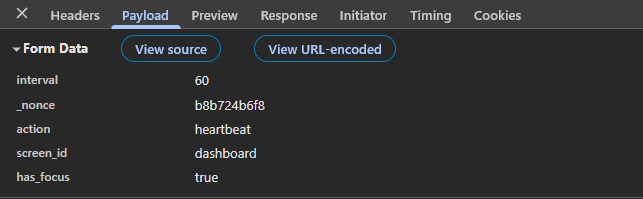
See the form data? We can add values here using jQuery. Yes, jQuery. This API was designed around it. It uses jQuery at its core (triggering jQuery events) and it’s not possible to use it without it. Get over it. To add the data, we need to hook into the “hearbeat-send” jQuery event. Here’s an example:
jQuery( document ).on( 'heartbeat-send', function ( event, data ) {
	data.pgn_customfield = 'some_data';
});And here’s the new admin-ajax payload:

Great, we’re now including custom data in every Heartbeat “tick”. For our product alerts plugin, this could be as simple as including data.wooalerts_last_checked = {unix timestamp of last update}.
Remember, this request goes to the admin-ajax endpoint. However, the way you interact with that data on the server is a little different. You need to hook into the “heartbeat_received” filter. This filter passes the data (the payload from the request) and a $response array – which you can modify to change the response. Here’s an example:
function pgn_receive_heartbeat( $response, $data ) {
	// If we didn't receive our data, don't send any back.
	if ( empty( $data['pgn_customfield'] ) ) {
		return $response;
	}

	$response['pgn_response'] = 'some response data';
	return $response;
}
add_filter( 'heartbeat_received', 'pgn_receive_heartbeat', 10, 2 );And here’s the response to the Heartbeat request:

In reality, the semantically correct filter for response modification would be “heartbeat_send”, but “heartbeat_received” (which is more intended for taking an action) will work just as well. It also passes a third argument – $screen_id. Look up at the screenshot of the payload. The screen ID was “dashboard”. This is just a string indicating the admin page the user is on, e.g., “dashboard”, “post”, “plugins”, etc.
The final piece of the puzzle is processing the response. In order to do that, you have to hook into the “heartbeat-tick” jQuery event. Let’s say we’ll log the response in the console every time we receive it:
jQuery( document ).on( 'heartbeat-tick', function ( event, data ) {
	if ( !data.pgn_response ) {
		return;
	}

	console.log( data.pgn_response );
});And sure enough, here’s our console after the next Heartbeat tick:

So, what is this API used for in the wild? Well, the core, as far as I can tell, uses it mainly for two things. First of all, it checks if your session is still valid. See the “wp-auth-check” field in the response above? If that returned false, you’d get a pop-up asking you to log in again. Go check it out for yourself – modify the session cookies in your browser while in the admin panel and wait for the next tick.
The second thing only exists in the post editor. There are a few custom data fields sent in the editor – wp-refresh-post-lock.lock and wp-refresh-post-lock.post_id. These fields are used to provide the “post locking” functionality. Basically, when you start editing a post, and another admin/editor wants to edit this same post, they will get a pop-up saying that the post is locked and being edited by you.
By the way, the polling in the editor happens every 10 seconds, not every 60 seconds like it does in all other parts of the admin dashboard. This API is very useful, but it can put stress on the server – especially if you have many users with access to /wp-admin/. That’s why it’s not by default enqueued on the frontend. Imagine 100 users making admin-ajax requests every minute. Most shared hostings would explode.
Thankfully, the API is smart. Look back up at the screenshot of the payload. It contains a “has_focus” boolean value. It indicates if the current window is in focus. If it isn’t, the script will send only one final request (with a value of false) and it will not send any additional requests until the tab is back in focus. This means that you can live in peace with your 10 /wp-admin/ tabs open – they aren’t sending 10 admin-ajax requests every minute.
However, if you still want to reduce the load the Heartbeat API has on your server, you very much can. The “heartbeat_settings” filter allows you to control the API’s settings, including the interval. Here’s how you could use it to set the interval to 60 for all admin pages (even the editor):
function pgn_control_heartbeat_interval( $settings ) {
    $settings['interval'] = 60;
    return $settings;
}
add_filter( 'heartbeat_settings', 'pgn_control_heartbeat_interval' );